Problems with Microsoft PowerPoint
On Windows 10, Microsoft PowerPoint (Office 2016, Office 2013, Office 2010, and most other versions) may encounter an issue when opening or viewing presentations (.ppt, .pptx, and other formats) that were previously downloaded from email, the internet, or synced from cloud services such as ICDC Disk, Dropbox, Google Drive, OneDrive, etc.
When this issue occurs, the following error message is displayed:
Error Example
Powerpoint found a problem with content in X:\Path\Filename.pptx.
Powerpoint can attempt to repair the presentation.
If you trust the source of this presentation, click Repair.
The user is prompted to click Repair or Cancel, but clicking Repair usually does not resolve the issue. Instead, another error message appears with a Show Help button:
Example
Sorry, Powerpoint cannot read X:\Path\Filename.pptx.
When clicking Show Help, the following message is displayed:
Example
The presentation cannot be opened. Your antivirus program may prevent you from opening the presentation. To fix this problem, make sure your antivirus program is current and working correctly. If the problem persists and the presentation is from someone that you trust, turn off your antivirus program, and then try to open the presentation again. If you do this, make sure you turn on your antivirus program again after you open the presentation.
The issue occurs because Windows 10 and PowerPoint attempt to protect the system by blocking potentially unsafe files.
Please try the following solutions:
Method 1: Unblock PowerPoint Files
-
Right-click the required PowerPoint presentation.
-
Select
Propertiesfrom the context menu. -
On the
Generaltab, check theUnblockcheckbox located at the bottom of the window.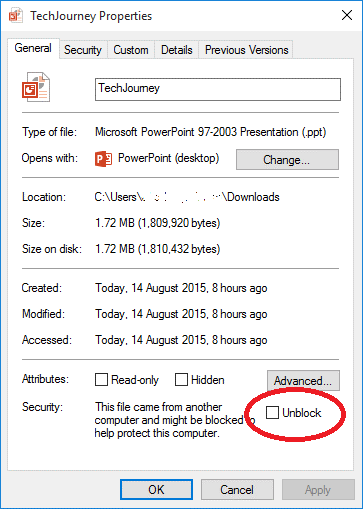
-
Click
OKorApply. -
Reopen the PowerPoint file and check whether the issue is resolved.
Method 2: Disable Protected View in PowerPoint
-
Open Microsoft Office PowerPoint.
-
Go to
File→Options. -
In the PowerPoint Options window, open
Trust Centerand clickTrust Center Settings.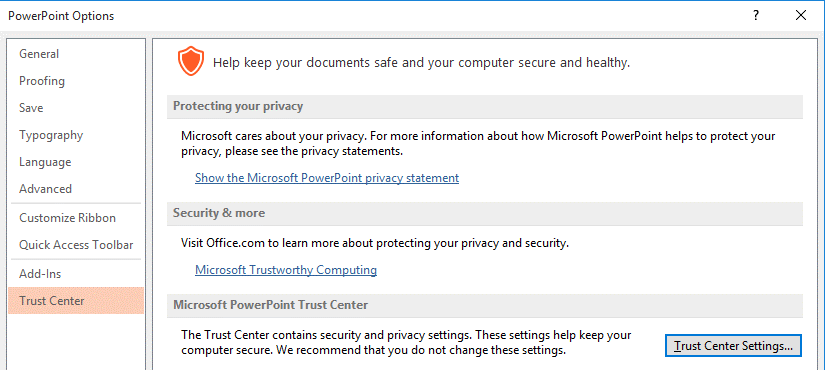
-
In the
Protected Viewtab, uncheck the following options to disableProtected View:Enable Protected View for files originating from InternetEnable Protected View for files located in potentially unsafe locationsEnable Protected View for Outlook attachments
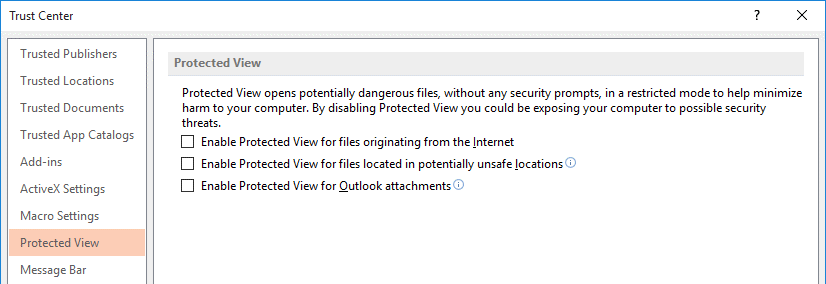
-
Click
OKto apply the changes. -
Reopen the PowerPoint file.
Method 3: Reinstall Microsoft Office
If the previous methods do not help, try completely uninstalling Microsoft Office and installing it again. On Windows 10, this may resolve corrupted components or configuration issues.
After reinstalling, open the PowerPoint presentation again and check whether the issue is resolved.